4.1. Sales registration
This section is used to process retail sales and refunds.
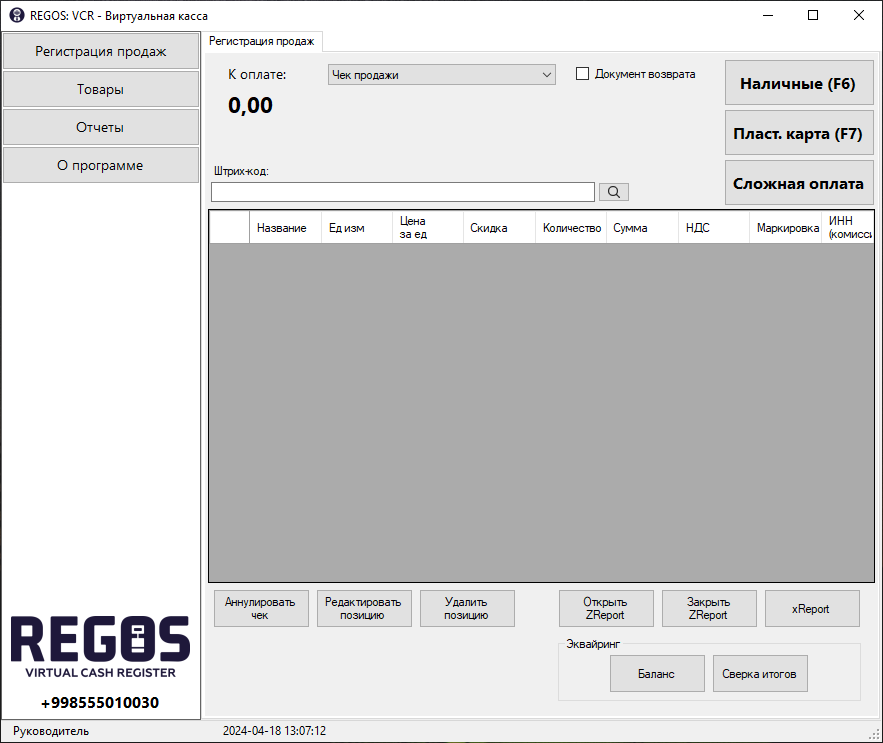
Opening and closing a ZReport
REGOS: VCR opens ZReports automatically when sales begin.
When an open ZReport reaches its capacity, it is closed automatically and a new ZReport is opened.
To open or close a ZReport manually, click the corresponding button.
Adding and editing items
To add a product to the document, scan its barcode using a barcode scanner or enter it manually in the field. If a match is found, the application adds the product to the document's item list.
Important: A receipt must contain no more than 150 items.
To edit an item in the document, select it and click “Редактировать позицию” (Edit item). In the pop-up window, specify the required quantity and discount.
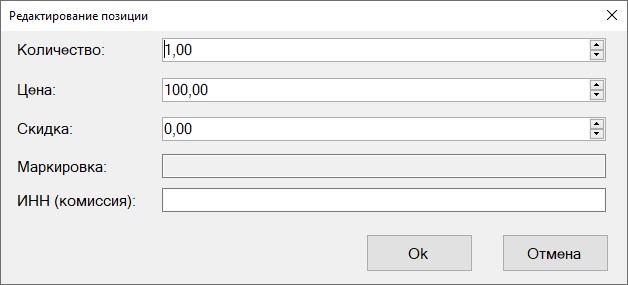
If marking is required for the product, its marking code must also be entered.
- Each item's marking code must be unique within the receipt.
- Marked products are added to the receipt as separate items.
- The quantity of a marked product item cannot exceed one.
If necessary, cancel the open document by clicking “Аннулировать” (Cancel). This clears the document's item list.
Sales document
A document containing a list of products is a sales document by default.
Entering a payment
Payments can be accepted in cash, by bank card, or through payment systems. The total can be split between different payment methods.
Important: A receipt must contain no more than one cashless payment.
Cash (F6)
Closes the sales document with a cash payment.
Bank card (F7)
Closes the sales document with a bank card payment.
Mixed payment
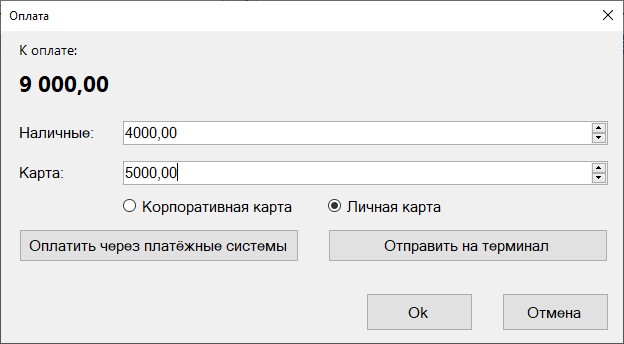
In the pop-up window, enter the amounts to be paid in cash and/or by bank card (or through a payment system).
Payment through a terminal
When paying through a terminal, select the customer's card type: corporate or personal.
The “Отправить на терминал” (Send to terminal) button is available when a terminal is connected. Clicking it sends the payment amount from the “Карта” (Card) field to the terminal.
Clicking “Ок” closes the document and prints the fiscal receipt. If a card payment amount is specified, it is sent to the terminal, and the document is closed after the payment succeeds.
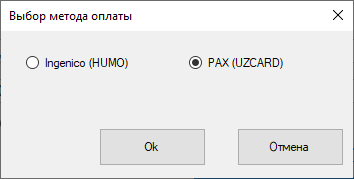
If several terminals are connected, such as PAX and Ingenico, select the terminal through which the payment will be accepted in the window that appears.
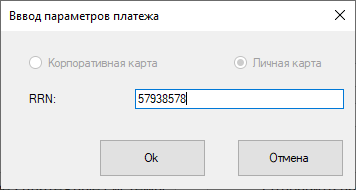
If payment was made through the terminal, a window appears in which to enter the RRN from the terminal receipt or fiscal receipt.
Payment through payment systems
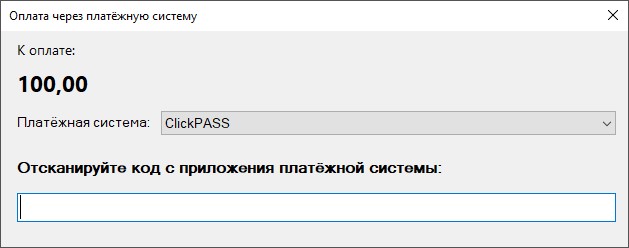
In the pop-up window, select the payment system and scan the QR code from the customer's smartphone.
Note: Payment through a payment system is recorded as a card payment, and the card is treated as personal.
Refund document
To return goods, select the “Документ возврата” (Refund document) checkbox. Clicking a payment button processes the refund document and prints a refund receipt.
Note: To issue a refund, sufficient funds for the corresponding payment type must be available within the open ZReport.
For a full refund, add all items from the sales receipt. The entire sales receipt amount is then refunded to the customer.
For a partial refund, add the items from the sales receipt that need to be returned. Only the value of the products added to the refund document is refunded to the customer.
Search
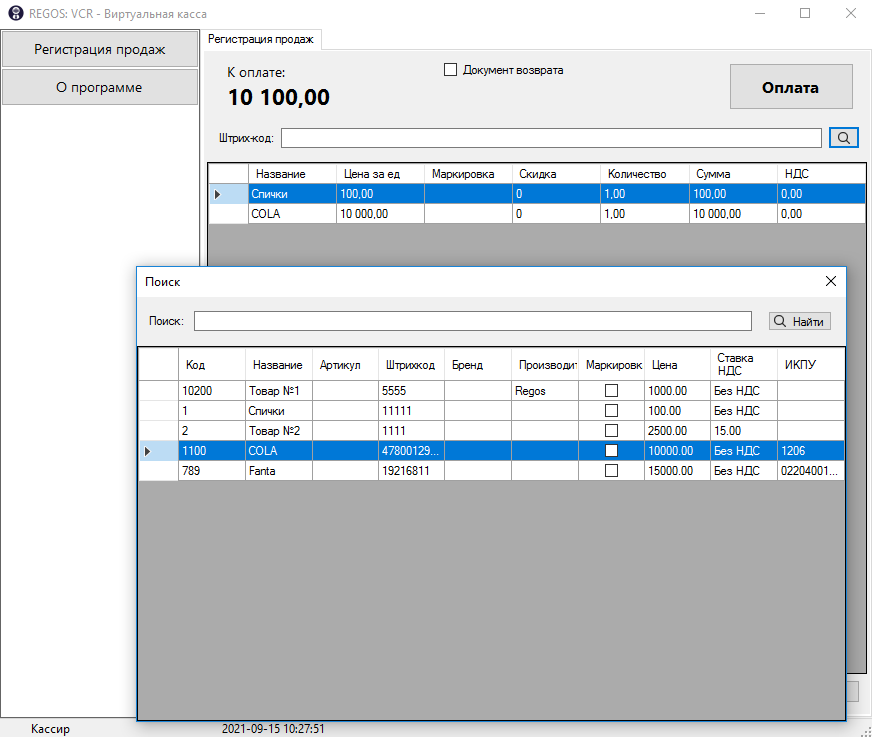
To search the database for products, click “🔍” to the right of the barcode field. In the window that opens, enter the search data and click “Найти” (Find). The following fields are searched:
- Name;
- Barcode;
- Article number;
- Brand;
- Manufacturer.